SSO Setup Guide
This guide explains how to set up Single Sign-On (SSO) for your Deepdesk account using OAuth2 and OpenID Connect.
Microsoft Entra (Azure AD)
Overview
Setting up SSO with Microsoft Entra ID allows your users to authenticate using their existing Microsoft organizational accounts, providing a seamless and secure login experience.
For information about automatically assigning Deepdesk roles during SSO login, see Automatic Role Assignment.
Prerequisites
Before starting the setup, ensure you have:
- Administrator access to your Microsoft Entra ID (Azure AD) tenant
- Administrator access to Deepdesk Admin portal
- The ability to create and configure OAuth applications in Entra ID
Information Exchange
To complete the setup, you'll need to exchange information with your customer (or IT administrator):
Information to Provide to Customer
- Redirect URL:
https://onboarding.deepdesk.com/oauth/callback/(see Generic Callback URI below) - Required Scopes:
openidemail
Information to Receive from Customer
The customer will provide you with:
- Tenant ID: Your Microsoft Entra tenant identifier
- Client ID: The application (client) ID from Entra ID
- Client Secret: The client secret value
Configuration Steps
1. Create OAuth Provider in Deepdesk Admin
Navigate to the OAuth providers section in Deepdesk Admin and create a new provider with the following settings:
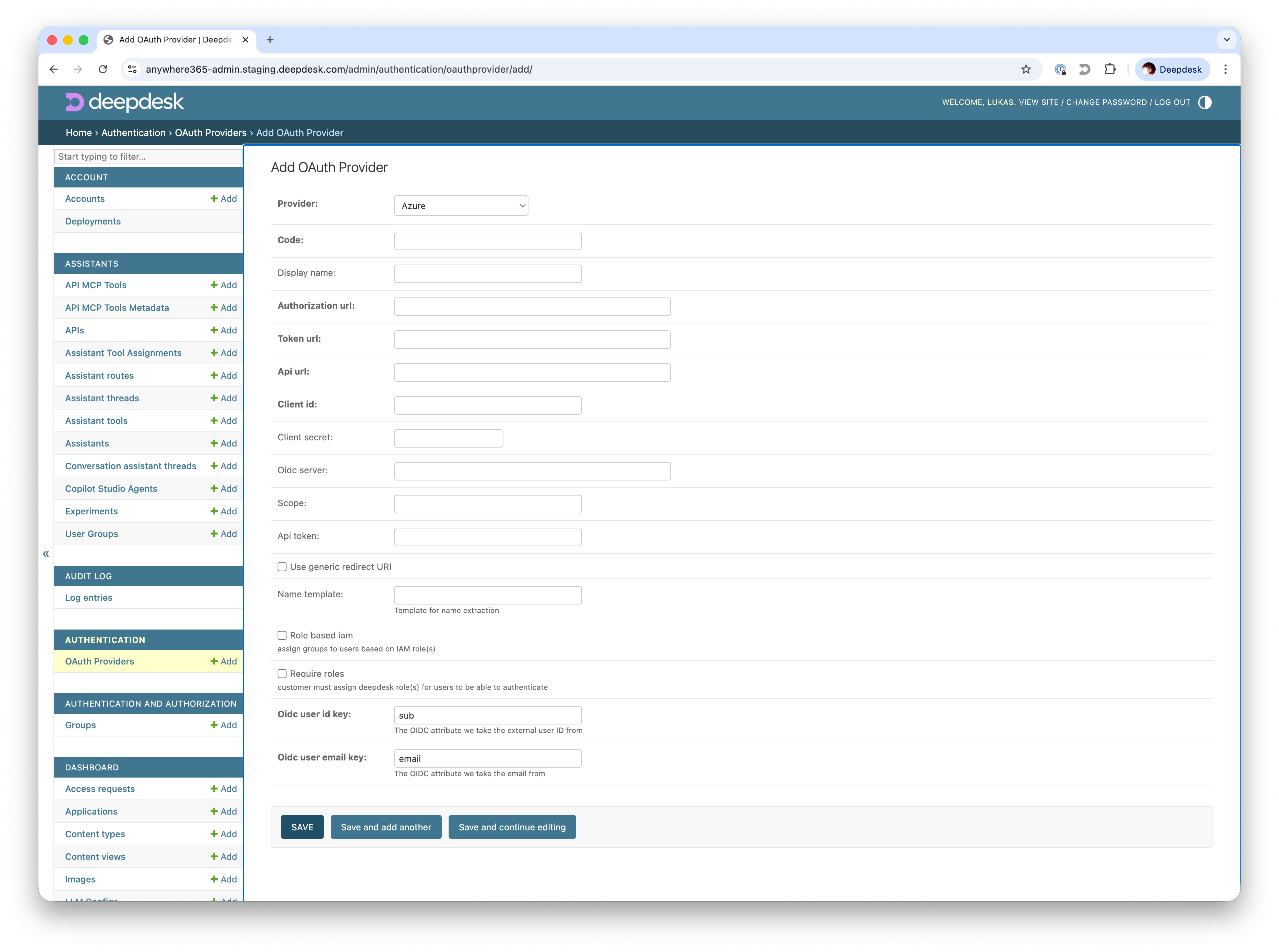
Provider Configuration:
- Provider: Azure
- Code: A human-readable identifier for this provider (e.g.,
customer-entra-id)- Must be lowercase and URL-safe
- Used in callback URLs and internal references
- Display name (optional): A friendly name for this provider
- Authorization URL:
https://login.microsoftonline.com/<tenant-id>/oauth2/v2.0/authorize- Replace
<tenant-id>with the actual Tenant ID
- Replace
- Token URL:
https://login.microsoftonline.com/<tenant-id>/oauth2/v2.0/token- Replace
<tenant-id>with the actual Tenant ID
- Replace
- API URL:
https://graph.microsoft.com - Client ID: The Client ID provided by the customer
- Client Secret: The Client Secret provided by the customer
- OIDC Server:
https://login.microsoftonline.com/<tenant-id>/v2.0- Replace
<tenant-id>with the actual Tenant ID
- Replace
- Scope:
openid email(separated with spaces) - Use generic redirect URI: Enabled (recommended)
- OIDC User ID: Which OIDC property to use as the primary external identifier for this user, default
sub - OIDC User Email: Which OIDC property to use as the email address for this user, default
email
2. Set Active SSO Provider
Configure which SSO provider should be used on the account's home page:

Currently, Deepdesk displays one primary SSO link on the home page. You can configure which provider is used in the account's active platform configuration.
Once configured, users can start the SSO flow from:
- The homepage SSO button
- Direct URL:
https://<account>.deepdesk.com/platform/sso
Generic Callback URI
The "Use generic redirect URI" option determines which callback URL should be registered in the OAuth provider:
For Salesforce we have a 'global' app, with one SSO registration that is shared for all the tenants. Because of this, we need a central callback URL, which then redirects to the tenant account. We use the centrally running Onboarding service for this.
When Enabled (Recommended)
- Callback URL:
https://onboarding.deepdesk.com/oauth/callback/ - Use case: Single global OAuth application registration shared across multiple accounts
- Examples: Salesforce, NICE, or single-account setups
When Disabled
- Callback URL:
https://<account>.deepdesk.com/platform/sso/<provider-code>/callback/ - Use case: Account-specific OAuth applications
- Replace
<account>with the Deepdesk account subdomain - Replace
<provider-code>with the provider code you configured
Testing the SSO Setup
To verify the SSO configuration is working correctly:
-
Navigate to the SSO start URL:
- Via active provider:
https://<account>.deepdesk.com/platform/sso - Via specific provider:
https://<account>.deepdesk.com/platform/sso/<provider-code>/start/
- Via active provider:
-
You should be redirected to the Microsoft Entra login page
-
After successful authentication, you should be redirected back to Deepdesk
-
Verify that you are logged in with the correct user account
Troubleshooting
Redirect URI Mismatch
- Ensure the redirect URI registered in Entra ID matches your configuration
- Check if "Use generic redirect URI" is set correctly
Invalid Client or Client Secret
- Verify the Client ID and Client Secret are copied correctly
- Check for extra spaces or truncated values
- Ensure the client secret hasn't expired in Entra ID
Scope Issues
- Confirm
openidandemailscopes are granted in Entra ID - Check if admin consent is required for your organization
User Not Created
- Check trial mode settings if users aren't being created automatically
- Review access control configuration
- See Access Requests for new user workflows
Other SSO Providers
The general OAuth2/OIDC setup process is similar for other identity providers. Key differences:
- Authorization and Token URLs: Provider-specific endpoints
- Scopes: May vary by provider
- Additional Configuration: Some providers require extra parameters
For provider-specific technical details, see the SSO Developer Guide.
See Also
- SSO Developer Guide - Technical implementation details
- OAuth2 Roles - Automatic role assignment
- User Management - Access control and roles